
Overview
Spherifyer shows you at a glance how your VMware environment is doing: how full the datastores are, which VMs use how much, and where there are problems. To do this, it regularly asks your vCenter for its data and keeps the values. That way you also see how usage develops over weeks and months.
Spherifyer runs on one of your own servers. It is a single program file that needs nothing else. Your data stays with you. The program only contacts www.wedigo.net for updates and the license.
You use Spherifyer in two ways:
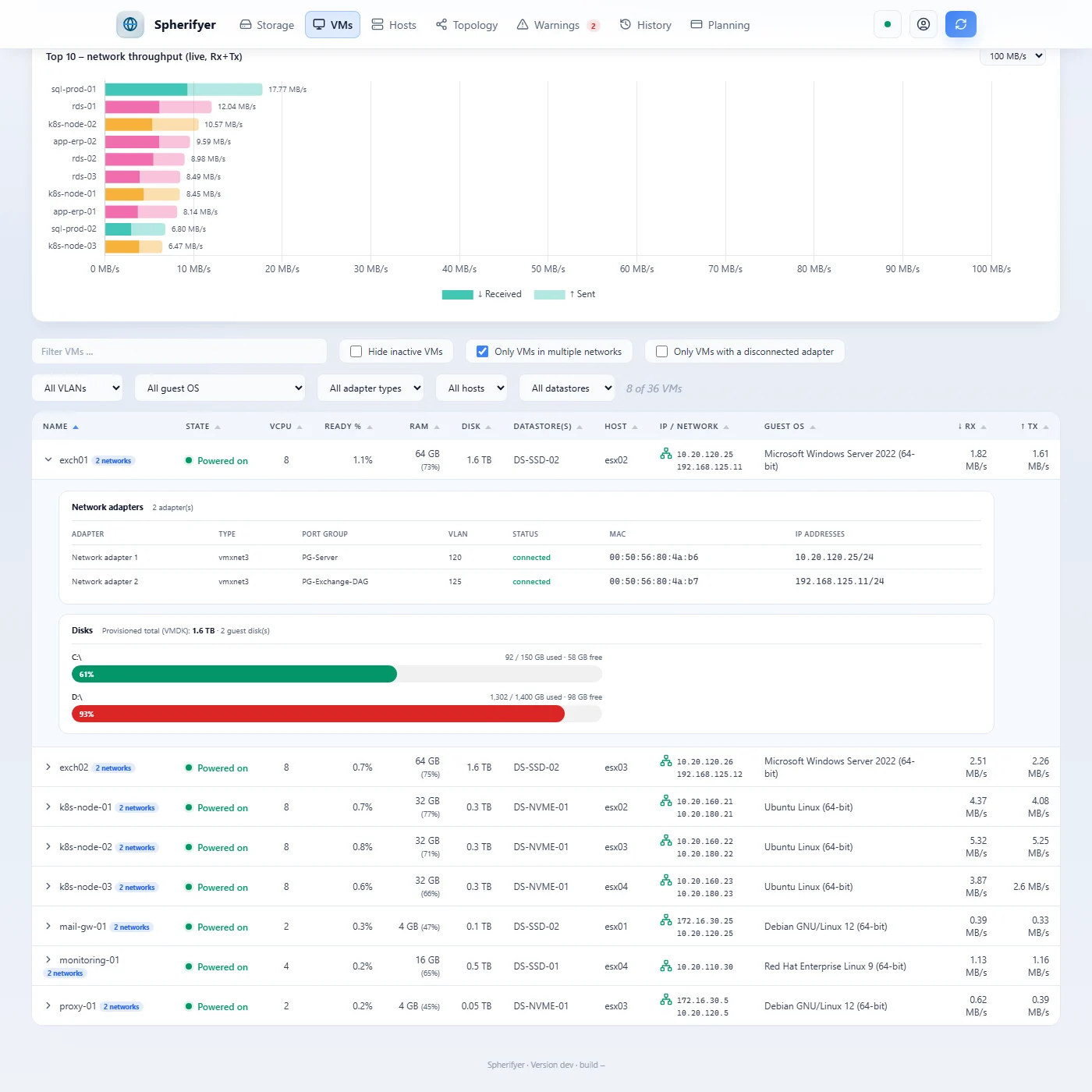
- In the browser: the dashboard with all views. This is where you work day to day.
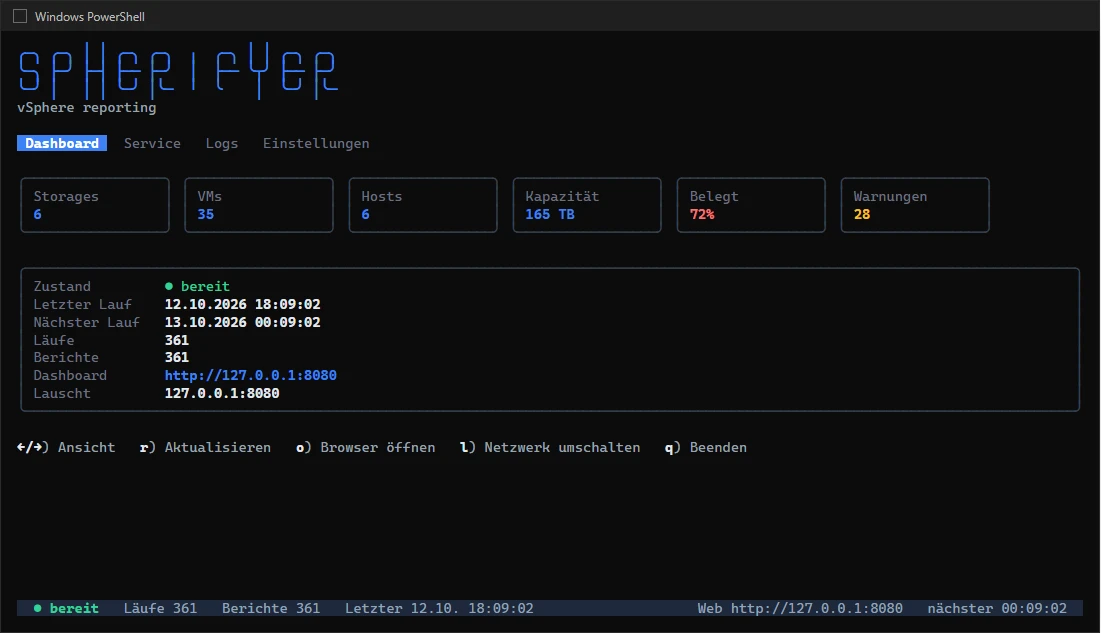
- In a console window: when started in a console, a simple text interface appears. It shows the state of the program and sets up the service. When Spherifyer runs as a service in the background, you do not need it.
Requirements
- A server running Windows or Linux (64-bit). A VM of its own is perfectly fine.
- A vCenter user that may only read. Best create a user just for this and give it the Read-only role. Assign the role at the very top of the vCenter and tick *Propagate to children*. Spherifyer never changes anything in vCenter.
- Network connections:
- from the Spherifyer server to the vCenter (HTTPS, port 443)
- from the Spherifyer server to
www.wedigo.net(HTTPS, port 443) for updates and the license. A proxy is possible. - from your workstation to the dashboard. At first it is only reachable on the server itself, see Access from other computers.
Installation
Put the program file into a folder of its own, for example C:\Program Files\Spherifyer or /opt/spherifyer. Everything Spherifyer creates ends up in this folder: settings, collected data and the encrypted password.
The first time, start Spherifyer by hand in a console window. It then asks for the access data of the vCenter (see Setup).
Windows
cd "C:\Program Files\Spherifyer"
.\spherifyer.exe
Linux
cd /opt/spherifyer
./spherifyer
Run as a service
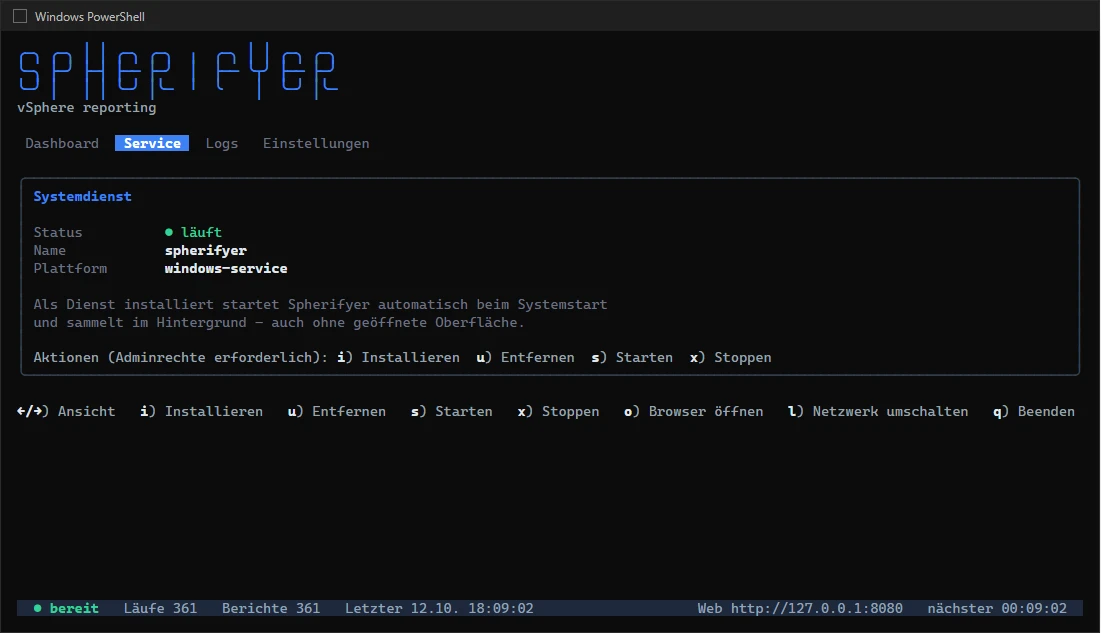
To keep Spherifyer running permanently, also after a restart of the server, set it up as a service. This needs administrator rights (sudo on Linux).
Windows
.\spherifyer.exe service install
.\spherifyer.exe service start
Linux
sudo ./spherifyer service install
sudo ./spherifyer service start
Should the service ever crash, Windows restarts it by itself.
You can also do this in the console window: Service tab (key 2), then i to set it up and s to start it. The console window has to be opened with administrator rights for this too.
Setup
On the very first start, Spherifyer asks three things in the console window:
- the address of your vCenter (name or IP address),
- the user name,
- the password.
Spherifyer stores the password encrypted. It puts the key for it into a file of its own next to it (vsphere.key). Without this file the password cannot be read, so include it in your backups.
Spherifyer then collects the first data right away. Open the dashboard on the server in the browser at http://127.0.0.1:8080, or press o in the console window.
Most vCenters use a self-issued certificate. Spherifyer accepts this by default. If your vCenter has an official certificate, you can make the check stricter: set vcenter.insecure to false.
Access from other computers
At first, the dashboard can only be reached on the server itself. That way nobody gets to it from outside by accident. To open it from your workstation:
- press
lin the console window, or - set
web.listento0.0.0.0:8080and restart the service.
Also allow port 8080 in the server's firewall. You then reach the dashboard at http://<server name>:8080.
The dashboard itself is not encrypted (HTTP). If it should be reachable across a larger network, put a web server with HTTPS in front of it, for example IIS or nginx.
Port and proxy
Spherifyer takes over a proxy set up in Windows by itself: first the one from netsh winhttp show proxy, otherwise the proxy entered in the Internet Options. Exceptions like *.example.com are taken over too. Automatic detection and PAC scripts are not evaluated. You only need a proxy of your own if Windows does not know one or Spherifyer should use a different one.
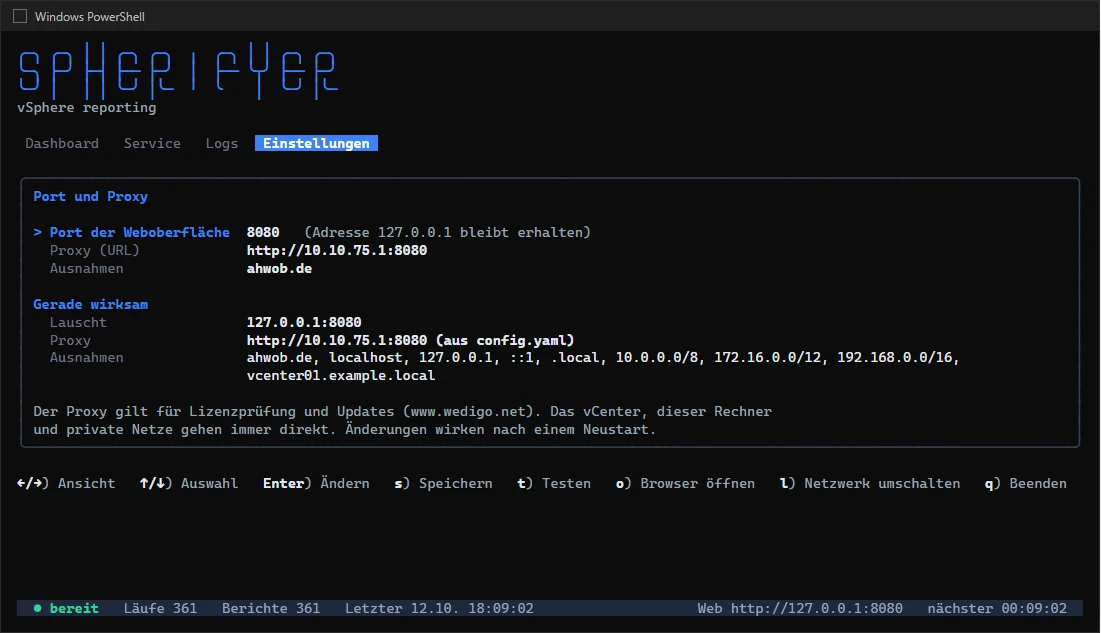
You change the dashboard port and the proxy for the internet in the console window on the Einstellungen (settings) tab (key 4):
- Port der Weboberfläche (web port): for example
8443instead of8080. The address in front of it (local only or for everyone) stays as it is. If the port is already in use on the server, Spherifyer warns you. - Proxy (URL): If the server needs a proxy for the internet, enter it here, for example
http://10.10.75.1:8080. With a login:http://user:password@10.10.75.1:8080. Spherifyer stores the password encrypted inproxy.creds, not inconfig.yaml. Empty means: no proxy of its own; then the proxy from Windows or fromHTTPS_PROXYapplies. - Ausnahmen (exceptions): names and networks that do not go through the proxy, separated by commas, for example
example.com,10.20.0.0/16. The server itself, the private networks and your vCenter always connect directly.
Pick a field with the arrow keys and press Enter to change it. Enter accepts, Esc cancels. With t you check right away whether www.wedigo.net can be reached through the proxy you entered, even before saving. With s you save to config.yaml. The change takes effect after restarting Spherifyer or the service (spherifyer service restart).
The tab also shows which proxy is in use right now and where it comes from (config.yaml, environment variable or Windows). If a value comes from an environment variable, you can only see it there, not change it.
Login and password
On the first start, Spherifyer creates the user admin with a random initial password. The password is shown only once: in the console window and in the log file spherifyer.log in the program folder.
- After the first login, you choose your own password (at least 10 characters).
- Later, change it in the user menu at the top right.
- After several wrong attempts, Spherifyer waits a moment before it allows another try.
Forgot the password? Stop the service, delete the file auth.json in the program folder and start the service again. spherifyer.log then contains a new initial password.
Views
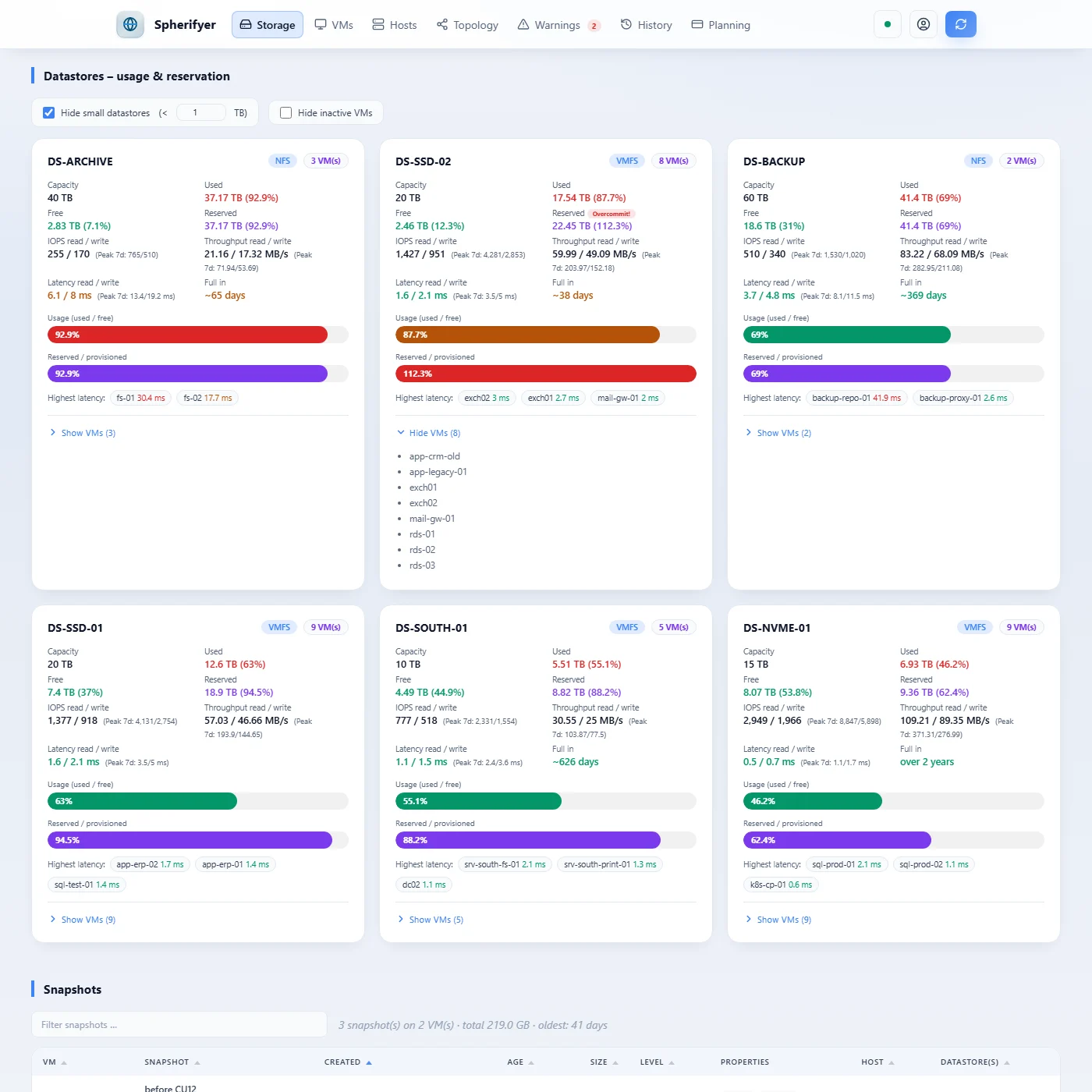
Storage: How full is each datastore, how much has been promised to the VMs, and how fast does it work? Including peak values of the last seven days, when it is expected to be full and which VMs have the highest latency on it.
VMs: All VMs in one table to filter and sort. A click on a row shows the network adapters and disks of the VM. The filters find, for example, VMs connected to several networks or with a disconnected network adapter.
Hosts: Load of processor, memory and network per host, and which VMs run on it. Also, per host, the VMs that wait longest for free processor cores (CPU ready).
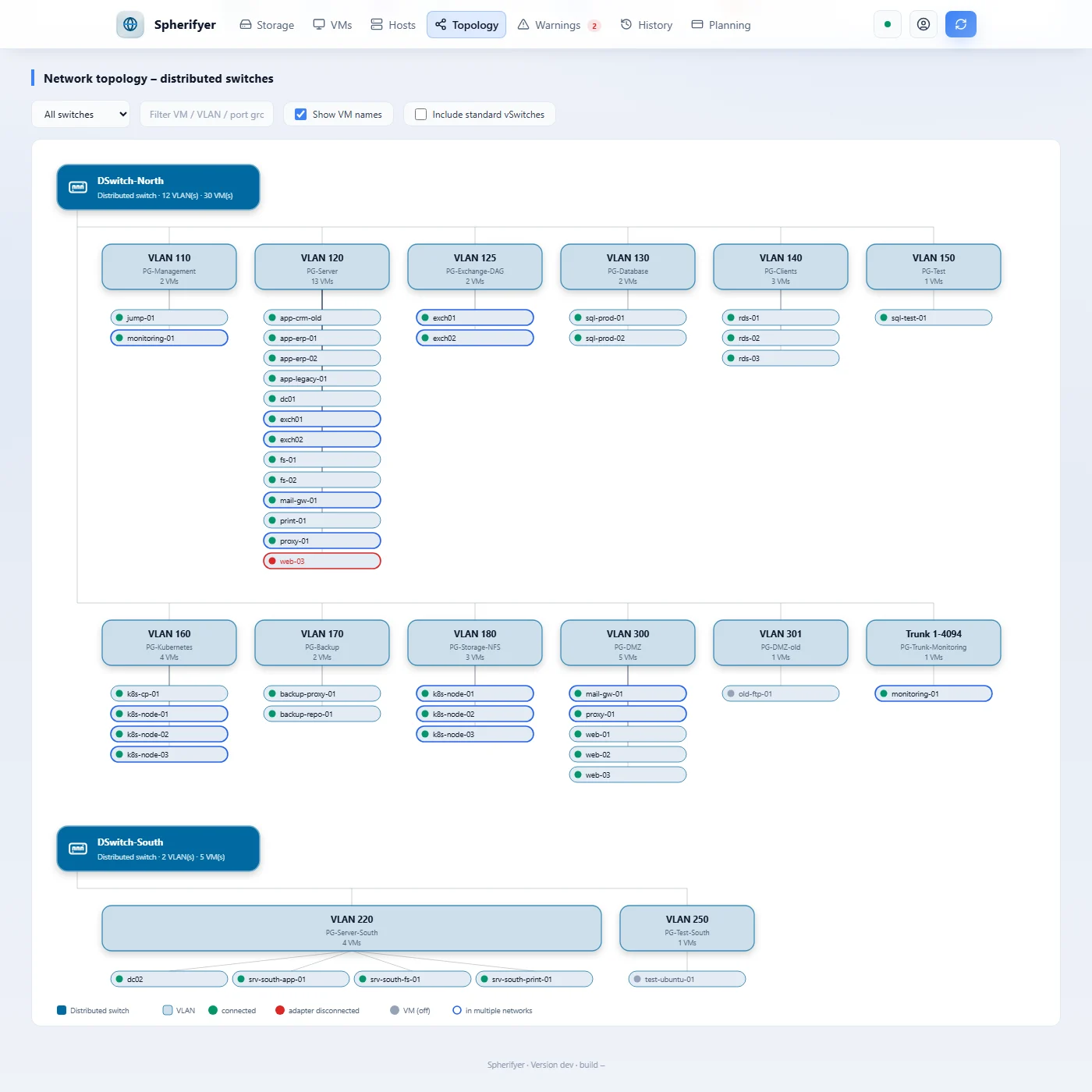
Topology: Your environment as a tree, and which VM is connected to which network (VLAN).
Warnings: What Spherifyer notices, each with a recommendation, see Warnings and recommendations. The categories at the top filter the list, for example to Compliance (items from the vSphere Security Configuration Guide) or Capacity.
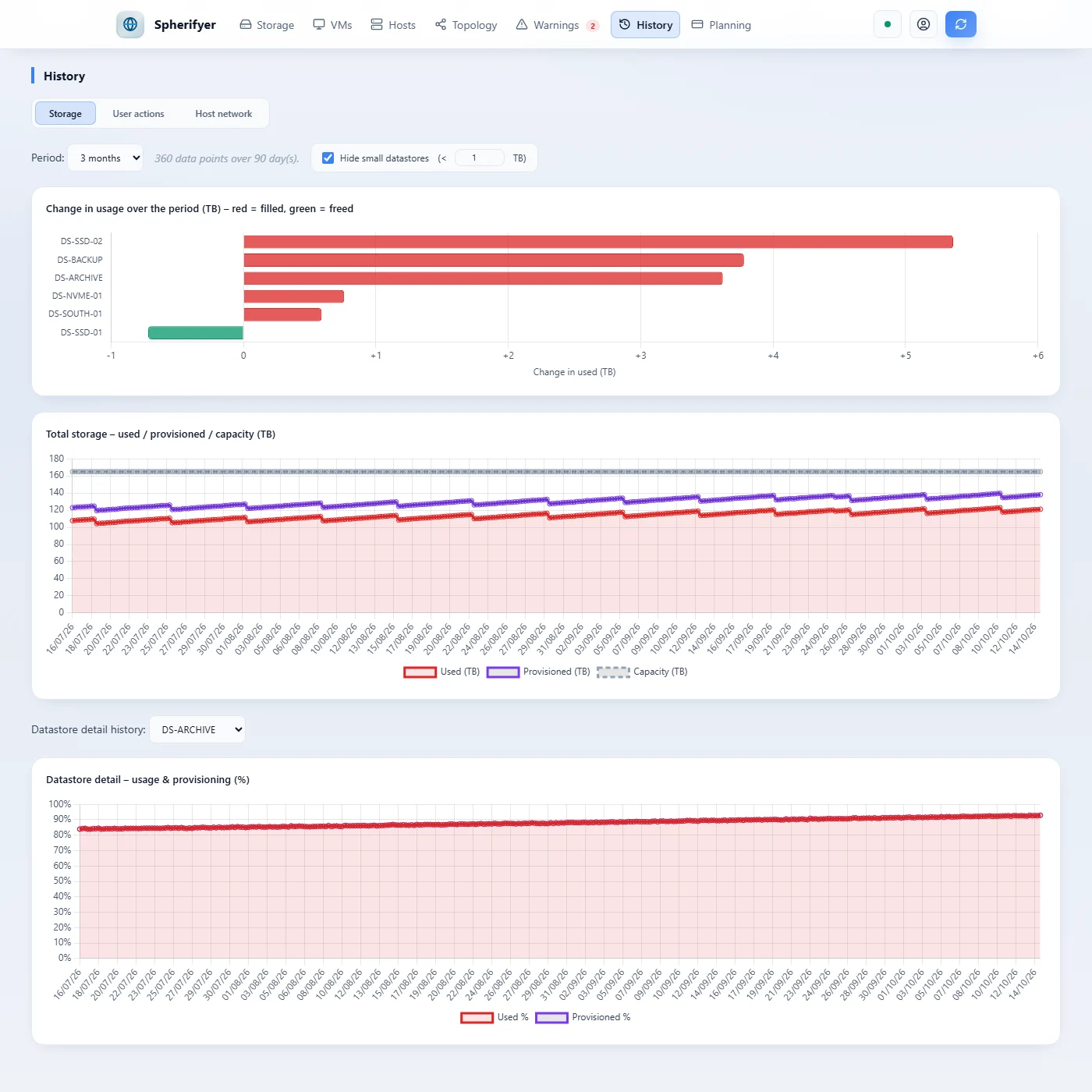
History: How usage has developed over a period of your choice. Plus who changed what in vCenter, and the network load of the hosts.
Planning: Four views for the next decisions:
- Forecast: Usage per cluster (CPU, RAM, storage, vCPU per core), whether the cluster absorbs a failure of its largest host, and when storage is full at the growth of the last 30 days. Below, all datastores by time to full; it is also shown on the datastore cards in the Storage tab.
- Reclamation: VMs that have been off for a long time, idle VMs and snapshots older than 30 days, with the total storage, vCPUs and RAM. With monthly prices in the settings (
planning.price_*), also the estimated saving. - What-if: A failure simulation as a map: hosts with their VMs, disaster examples (largest host, two hosts, half the cluster, maintenance host by host, datastore fails) or hosts of your choice. The VMs of failed hosts visibly move to the others, as HA would restart them; whatever finds no room is shown under "Cannot start". Plus new VMs, a verdict with reasons, limits and how many VMs of that size still fit afterwards.
- Licensing: How many processors and cores each datacenter has. You need this to plan your VMware licenses.
All views are available in German and English, light and dark.
Warnings and recommendations
After every collection, Spherifyer checks the data and reports what stands out, each with a suggestion what to do. In the dashboard, the placeholders in braces are replaced by real values.
| Message | Recommendation |
|---|---|
| If the largest host fails, the CPU of the other hosts is not enough: {pct}% load | Add a host or spread the load so the cluster can absorb a failure. |
| If the largest host ({host} GB) fails, the RAM of the other {hosts} hosts is not enough: {pct}% used | Add a host, add RAM or shrink or switch off VMs so the cluster can absorb a failure. |
| If the largest host ({host} GB) fails, the other hosts are {pct}% used in RAM | Watch the reserve; add a host or RAM if it keeps growing. |
| CD/DVD drive is connected | Disconnect the drive when it is not needed; connected media can block vMotion. |
| Emulated network adapter: {nics} | Switch to vmxnet3: less CPU load and more throughput. |
| Virtual hardware {version} is outdated (recommended {min} or later) | Upgrade the VM hardware in the next maintenance window (VM powered off, snapshot or backup first). |
| Lockdown mode is off | Turn on lockdown mode (normal) so the host is managed through vCenter only. |
| No NTP server configured | Add an NTP server and start the NTP service; a wrong clock breaks sign-in, logs and certificates. |
| NTP service is not running (servers: {servers}) | Start the NTP service and set it to "Start and stop with host". |
| No timeout for ESXi Shell sessions (UserVars.ESXiShellInteractiveTimeOut = 0) | Set a timeout, for example 900 seconds. |
| No syslog target configured (Syslog.global.logHost) | Send the logs to a central syslog server so they survive a reboot. |
| CPU ready time {pct}% – vCPU scheduling heavily delayed | Migrate VMs to less loaded hosts or reduce the number of vCPUs. |
| CPU ready time {pct}% – host CPU possibly overloaded | Check the host CPU load, consider DRS balancing or VM migration. |
| CPU topology set manually: {vcpu} vCPUs, {cores} cores/socket ({sockets} sockets) | Reset the CPU topology to automatic unless licensing or operating system requirements call for it. |
| Drive {path}: only {pct}% free ({free} GB free / {cap} GB total) | Clean up the drive or expand capacity right away. |
| Drive {path}: {pct}% free ({free} GB free / {cap} GB total) – threshold: 10% | Clean up the drive or plan capacity. |
| Expected to be full in {days} days – grows by {growth} GB per day, {free} TB still free | Check the growth (Planning, Reclamation) and add capacity or move VMs in time. |
| High I/O latency: read {read} ms / write {write} ms | Check the storage array, analyze queue depth and I/O contention. |
| Elevated I/O latency: read {read} ms / write {write} ms | Monitor the I/O load on the datastore. |
| Datastore {pct}% provisioned – overcommit ({prov} TB on {cap} TB capacity) | Check thin-provisioned VMs, snapshots or clones and clean up if needed. |
| Datastore {pct}% used ({used} TB / {cap} TB) | Migrate VMs or expand capacity. |
| Datastore {pct}% used ({used} TB / {cap} TB) | Monitor usage and plan capacity if needed. |
| {n} active VMs on one datastore | If it keeps growing, spread VMs across more datastores. |
| {n} active VMs on one datastore (recommended: max. 20) | Spread VMs across several datastores to avoid I/O bottlenecks. |
| CPU load at {pct}% | Keep an eye on the CPU load. |
| CPU load at {pct}% | Migrate VMs to other hosts or consider a hardware upgrade. |
| RAM usage critical: {pct}% used ({used} GB / {total} GB) | Migrate VMs to other hosts or add physical RAM. |
| RAM usage elevated: {pct}% used ({used} GB / {total} GB) | Monitor RAM usage and rebalance VMs if needed. |
| vCPU overcommit {ratio} : 1 ({vcpu} vCPUs on {logical} logical cores) | Rebalance VMs under high CPU load. |
| vCPU overcommit {ratio} : 1 ({vcpu} vCPUs on {logical} logical cores) | Spread VMs across more hosts or add CPU resources. |
| {ratio} virtual CPUs per physical core ({vcpu} vCPUs / {cores} cores) – threshold: 4 | Spread VMs across more hosts or add CPU resources. |
| ESXi Shell running on the host | Disable the ESXi Shell once administrative work is done. |
| SSH service running on the ESXi host | Disable SSH once administrative work is done. |
| Memory ballooning active: {mb} MB – ESXi is reclaiming memory from the guest OS (memory pressure on the host) | Check host RAM usage in the Hosts tab. If ballooning persists: move VMs to hosts with more free RAM. |
| VM is swapping {mb} MB – ESXi has swapped memory pages to disk (the host is or was under memory pressure) | Check host RAM usage in the Hosts tab. If the host is relaxed, the value disappears with the next VM restart. If swapping persists: rebalance VMs or add host RAM. |
| High CPU usage: avg {avg}% / P95 {p95}% over {n} samples ({days} days) – VM has {vcpu} vCPUs | Assign more vCPUs or spread the workload across more VMs. |
| Low CPU usage: avg {avg}% / P95 {p95}% over {n} samples ({days} days), CPU ready P95 {ready}% per vCPU – VM has {vcpu} vCPUs | Reduce the number of vCPUs, but not below {min} – surplus vCPUs add scheduling overhead on the host. |
| High RAM usage: avg {avg}% / P95 {p95}% over {n} samples ({days} days) – VM has {gb} GB | Assign more RAM or spread the workload. |
| Low active RAM: avg {avg}% / P95 {p95}% over {n} samples ({days} days) – VM has {gb} GB, host {host}% used | First check the usage inside the guest (Task Manager, for SQL Server "max server memory"), then reduce the RAM, but not below {min} GB. |
| Snapshot '{name}' present – age: {age} days (created: {date}) | Review the snapshot and remove it if possible. Old snapshots can use a lot of storage and slow down the VM. |
| VMware Tools not installed | Install VMware Tools for complete monitoring and best performance. |
| VMware Tools not running (installed but not started) | Restart the VM or start VMware Tools manually. |
| VMware Tools outdated | Update VMware Tools to the current version. |
| Inconsistent folder name: VM name "{name}" ≠ folder "{folder}" | Rename the folder so that VM name and folder match. |
| VM is powered off (power state: {state}) | Check whether the VM is still needed. Remove or archive VMs that are not. |
License and activation
Without a license key, Spherifyer shows a single host so you can try the program. With a license key you see your whole environment.
- You receive the license key by e-mail right after the purchase. It belongs to the e-mail address you bought with.
- Activation needs a connection from the server to
www.wedigo.net, also through a proxy (see Port and proxy). After that, Spherifyer checks in there briefly every 30 days. If the connection fails, the license keeps working for up to 60 days. - A license covers one installation and all updates of the version you bought, for example all 1.x versions. When a new major version comes out, Spherifyer points it out but does not install it by itself.
Which host without a license? Spherifyer picks it at random at the first collection and sticks with it. It only picks another one if the host no longer exists in vCenter. You see this host with its VMs and datastores in all views. The dashboard only counts the other hosts ("7 more hosts – visible with a license key"). All data is still collected: as soon as the license is valid, you see your whole environment, including its history.
Entering the license key: In the dashboard, open the user menu at the top right and choose *License*. Paste the key, enter the e-mail address you bought with and click *Save*. Spherifyer checks the key online right away and writes it to config.yaml. You can also enter it there yourself (license.key and license.email, see Settings) and restart the service.
The *License* dialog shows who the license is for, which version it covers, when it was last checked and until when it is valid. *Check now* asks right away, for example after you have allowed the connection to www.wedigo.net.
Moving to another server: Enter the key on the new server. The license then moves there, and the old server shows only one host again. To get the license back, click *Transfer the license to this installation* there.
If there is a problem with the license, the dashboard shows a notice at the top: when www.wedigo.net has not been reached for more than 45 days, the license was moved to another server, revoked or has run out, or the server's clock is behind. Spherifyer keeps running in every case, and no data is lost.
More on purchase and refunds: Pricing and License terms.
Updates
Spherifyer keeps itself up to date. It regularly checks www.wedigo.net for a new version, makes sure it really comes from us, and installs it.
How this works is set in update.mode:
auto(default): new versions are installed, the service briefly restarts afterwards.notify: Spherifyer only reports a new version. You install it yourself in the dashboard.off: no checks for updates.
With update.window you set a time of day when installing is allowed, for example "02:00-05:00". The dashboard shows the state in the user menu under *Software update*, where you can also check and install by hand.
Automatic installs only happen when Spherifyer runs as a service and may write to its program folder. When started by hand in a console window, it only reports new versions.
Updates always stay within your major version, for example 1.x. When a new major version comes out, Spherifyer shows a notice below the header, in *Software update*, with the license and in the console window: your license is not valid for the new major version, it needs an upgrade. Your version keeps receiving updates. You can dismiss the notice below the header; it returns with the next major version.
Back to the previous version
Spherifyer keeps the previous version. If a new version does not start properly, it goes back to the old one by itself. You can also do this by hand:
Windows
.\spherifyer.exe rollback
.\spherifyer.exe service restart
Linux
sudo ./spherifyer rollback
sudo ./spherifyer service restart
Backup
Back up the program folder. These files matter:
config.yaml: your settingsvsphere.keyandvsphere.creds: the password for the vCenter. The two belong together.proxy.creds: the password for the proxy, if you entered one. It can only be read together withvsphere.key.auth.json: the users of the dashboardhistory.db: the collected data and the state of the license on this server. Safest to copy while the service is stopped.
To restore, put the files back into the program folder and start the service.
Troubleshooting
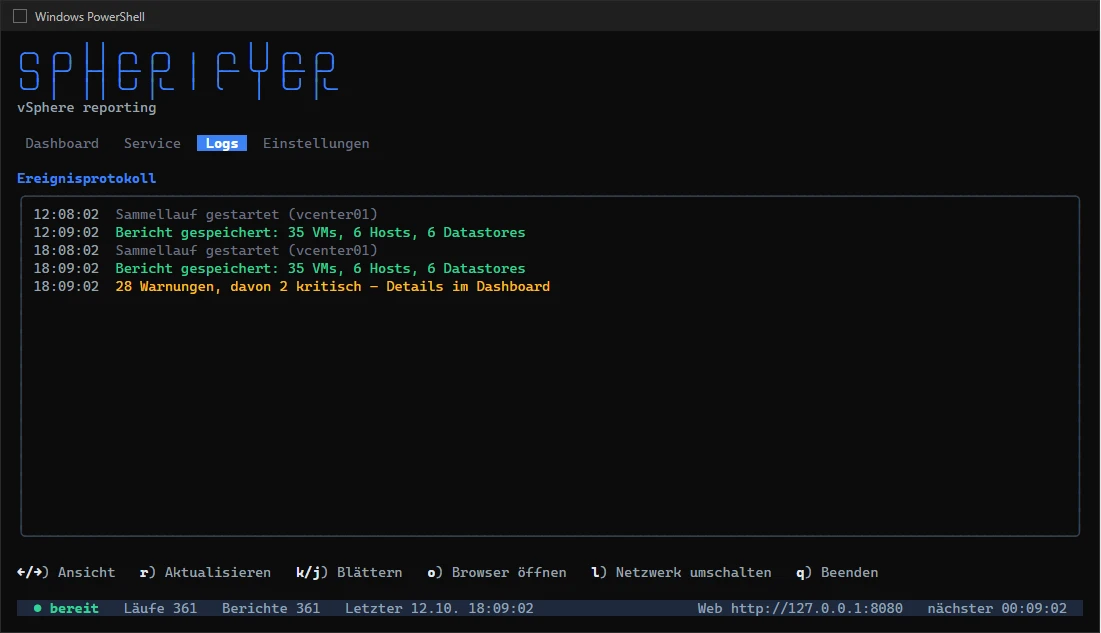
Spherifyer cannot reach the vCenter. Check that the server reaches the vCenter under the name you entered and that no firewall blocks port 443. What exactly goes wrong is shown in the console window (Logs tab, key 3) or in spherifyer.log.
The dashboard only works on the server itself. That is the default. See Access from other computers.
I can no longer log in to the dashboard. See Forgot the password.
Performance values are missing under Storage. The vCenter only delivers these values after a while. They appear after the first collections. Performance statistics must be switched on in vCenter, which they normally are.
An update is not installed. Does Spherifyer run as a service, and may it write to its folder? A version that has been rolled back once is not installed again.
License/updates: no connection. The license and updates need a connection to www.wedigo.net (HTTPS, port 443). The *License* dialog in the user menu and spherifyer.log show the exact error. In the console window, the Einstellungen (settings) tab shows which proxy is in use. If a proxy is set up in Windows (netsh winhttp show proxy or Internet Options), Spherifyer uses it by itself. If the server needs a different proxy or Windows does not know one, enter it on the Einstellungen tab, check it with t and save it with s. Then restart Spherifyer or the service. See Port and proxy. Without the console window, enter the proxy in config.yaml under proxy.url. The environment variable HTTPS_PROXY still works too.
If none of this helps, write to us using the contact form.
Look up
This part is for looking things up when you want to change a particular setting.
Settings
The settings are in the file config.yaml in the program folder. Open it with a text editor. After a change, restart the service. Instead, you can also set each value with an environment variable; its name is below the setting in the table. The license key and e-mail address can also be read from a file, for example a Docker secret: add _FILE to the name and give the path of the file, for example SPHERIFYER_LICENSE_KEY_FILE=/run/secrets/spherifyer_license.
| Key / environment variable | Default | Meaning |
|---|---|---|
vcenter.serverSPHERIFYER_VCENTER_SERVER | – | Address of your vCenter (name or IP address). |
vcenter.usernameSPHERIFYER_VCENTER_USERNAME | – | User in vCenter, for example spherifyer@vsphere.local. The Read-only role is enough. |
vcenter.passwordSPHERIFYER_VCENTER_PASSWORD | – | Normally stays empty, because the password is stored encrypted. Only enter it here as a last resort. |
vcenter.insecureSPHERIFYER_VCENTER_INSECURE | false | Also accept self-issued vCenter certificates. |
vcenter.key_fileSPHERIFYER_VCENTER_KEY_FILE | vsphere.key | File with the key for the stored password. |
vcenter.creds_fileSPHERIFYER_VCENTER_CREDS_FILE | vsphere.creds | File with the encrypted password. |
collection.intervalSPHERIFYER_COLLECTION_INTERVAL | 1h | How often Spherifyer asks the vCenter, for example 30m (30 minutes) or 1h (1 hour). |
collection.run_on_startSPHERIFYER_COLLECTION_RUN_ON_START | true | Collect the first data right after the start. |
web.listenSPHERIFYER_WEB_LISTEN | 127.0.0.1:8080 | Address at which the dashboard can be reached. 0.0.0.0:8080 opens it to other computers. |
storage.pathSPHERIFYER_STORAGE_PATH | history.db | File that holds the collected data. |
storage.retention_daysSPHERIFYER_STORAGE_RETENTION_DAYS | 90 | How many days the data is kept. 0 means forever. |
log.levelSPHERIFYER_LOG_LEVEL | info | How detailed the log file is: debug (very detailed), info, warn or error (errors only). |
log.formatSPHERIFYER_LOG_FORMAT | text | Layout of the log file: text for reading, json for analysis tools. |
log.fileSPHERIFYER_LOG_FILE | – | Name of the log file. Empty: spherifyer.log in the program folder. On Linux as a service the log then goes to the system log (journalctl). |
auth.enabledSPHERIFYER_AUTH_ENABLED | true | Login for the dashboard. Only switch off in isolated networks. |
auth.fileSPHERIFYER_AUTH_FILE | auth.json | File with the users of the dashboard. |
auth.session_ttlSPHERIFYER_AUTH_SESSION_TTL | 12h | After how long without activity you have to log in again. |
update.modeSPHERIFYER_UPDATE_MODE | auto | auto, notify or off, see Updates. |
update.feed_urlSPHERIFYER_UPDATE_FEED_URL | – | Where updates come from. Leave empty. |
update.intervalSPHERIFYER_UPDATE_INTERVAL | 6h | How often to look for updates. |
update.windowSPHERIFYER_UPDATE_WINDOW | – | Time of day when updates may be installed, for example "02:00-05:00". Empty: any time. |
license.keySPHERIFYER_LICENSE_KEY | – | Your license key. Empty: Spherifyer shows one host. The easiest way is to enter it in the dashboard, see License and activation. |
license.emailSPHERIFYER_LICENSE_EMAIL | – | The e-mail address you bought with. It belongs to the license key. |
license.urlSPHERIFYER_LICENSE_URL | https://www.wedigo.net/api/license/v1/check | Address at which Spherifyer checks the license. Do not change. |
proxy.urlSPHERIFYER_PROXY_URL | – | Proxy for the internet (license and updates), for example http://10.10.75.1:8080, also with user@. The password is kept encrypted in proxy.creds_file. Empty: no proxy of its own; HTTPS_PROXY and NO_PROXY or the proxy from Windows apply. The vCenter never goes through the proxy. |
proxy.no_proxySPHERIFYER_PROXY_NO_PROXY | – | What should not go through the proxy, separated by commas: names, domains like example.com, IP addresses or networks like 10.20.0.0/16. The server itself, the private networks and the vCenter are always excluded. |
proxy.creds_fileSPHERIFYER_PROXY_CREDS_FILE | proxy.creds | File with the encrypted password for the proxy. Spherifyer creates it when you save a proxy with a password in the console window. A password you write into proxy.url by hand is moved there at the next start. |
rightsizing.min_vcpuSPHERIFYER_RIGHTSIZING_MIN_VCPU | 2 | Rightsizing never suggests shrinking a VM below this many vCPUs. Applies to all systems except Windows. |
rightsizing.min_memory_gbSPHERIFYER_RIGHTSIZING_MIN_MEMORY_GB | 2 | Rightsizing never suggests shrinking a VM below this much RAM (GB). Applies to all systems except Windows. |
rightsizing.windows_min_vcpuSPHERIFYER_RIGHTSIZING_WINDOWS_MIN_VCPU | 4 | Like rightsizing.min_vcpu, for Windows VMs. |
rightsizing.windows_min_memory_gbSPHERIFYER_RIGHTSIZING_WINDOWS_MIN_MEMORY_GB | 8 | Like rightsizing.min_memory_gb, for Windows 11, Windows Server 2022 and later. Spherifyer takes the system reported by VMware Tools, otherwise the type set in vCenter. |
rightsizing.windows_legacy_min_memory_gbSPHERIFYER_RIGHTSIZING_WINDOWS_LEGACY_MIN_MEMORY_GB | 4 | Like rightsizing.min_memory_gb, for older Windows versions. |
rightsizing.cpu_ready_pctSPHERIFYER_RIGHTSIZING_CPU_READY_PCT | 2 | Spherifyer only suggests fewer vCPUs if the VM shows this much CPU ready per vCPU over 7 days (P95, in percent), so it really has to wait for free cores. 0: regardless of CPU ready. |
rightsizing.host_memory_pctSPHERIFYER_RIGHTSIZING_HOST_MEMORY_PCT | 75 | Spherifyer only suggests less RAM if the VM's host is used at least this much (percent). On a free host, less RAM gains nothing. 0: regardless of the host. |
planning.price_vcpuSPHERIFYER_PLANNING_PRICE_VCPU | 0 | Monthly price per vCPU for the estimated saving in Reclamation. 0: no amounts. |
planning.price_memory_gbSPHERIFYER_PLANNING_PRICE_MEMORY_GB | 0 | Monthly price per GB of RAM. |
planning.price_storage_tbSPHERIFYER_PLANNING_PRICE_STORAGE_TB | 0 | Monthly price per TB of storage. |
planning.currencySPHERIFYER_PLANNING_CURRENCY | EUR | Currency of the prices, for example EUR or CHF. |
planning.off_daysSPHERIFYER_PLANNING_OFF_DAYS | 30 | Powered-off VMs show up in Reclamation after this many days. |
planning.idle_daysSPHERIFYER_PLANNING_IDLE_DAYS | 14 | Idle VMs (CPU never above 200 MHz, hardly any network traffic) show up in Reclamation after this many days. |
planning.full_soon_daysSPHERIFYER_PLANNING_FULL_SOON_DAYS | 90 | Warn when a datastore is expected to be full within this many days at the current growth. |
Commands
Enter these commands in a console window in the program folder.
| Option / command | Default | Meaning |
|---|---|---|
spherifyer -config | config.yaml | Use a different settings file. |
spherifyer -no-tui | – | Start without the text interface. |
spherifyer -version | – | Show the version number. |
spherifyer service install | – | Set up as a service (with administrator rights). |
spherifyer service uninstall | – | Remove the service again. |
spherifyer service start | – | Start the service. |
spherifyer service stop | – | Stop the service. |
spherifyer service restart | – | Restart the service. |
spherifyer service status | – | Show whether the service is running. |
spherifyer rollback | – | Go back to the version before the last update. Restart the service afterwards. |
Keys in the console window
| Key | Meaning |
|---|---|
1–4, ←/→, Tab | Switch between the Dashboard, Service, Logs and Einstellungen (settings) tabs. |
r | Collect new data right away. |
o | Open the dashboard in the browser. |
l | Open the dashboard to other computers, or close it again. |
i / u / s / x | Set up, remove, start or stop the service (Service tab, with administrator rights). |
k / j | Scroll through the log (Logs tab). |
↑/↓, Enter, Esc | On the Einstellungen tab: pick a field (arrow keys), change it (Enter), accept (Enter) or cancel (Esc). |
s | On the Einstellungen tab: save port and proxy to config.yaml. Takes effect after a restart. |
t | On the Einstellungen tab: check whether www.wedigo.net can be reached through the proxy you entered. |
q, Esc, Ctrl+C | Quit Spherifyer. |
Interface for your own analyses
You can also fetch all data of the dashboard as JSON, for example for your own scripts or monitoring systems. Except for the addresses marked as public, you have to be logged in for this (POST /api/auth/login). Without a license the interface returns the same as the dashboard, that is only the one visible host with its VMs and datastores.
| Route | Login | Meaning |
|---|---|---|
GET /health | public | Answers as long as Spherifyer is running. Useful for monitoring systems. |
GET /api/info | public | Name and version. |
POST /api/auth/login | public | Log in with user and password. |
POST /api/auth/logout | public | Log out. |
GET /api/auth/me | public | Who is logged in. |
GET /api/auth/status | public | Whether the login is switched on and whether the initial password is still in use. |
POST /api/auth/password | public | Change the password. |
/api/report | required | All current data. |
/api/status | required | When data was last and will next be collected, whether a collection is running, and the last error. |
/api/licenses | required | License requirements per datacenter. |
/api/history/totals | required | History of the total usage, ?days=30. |
/api/history/datastore | required | History of one datastore, ?name=…&days=30. |
/api/history/all-datastores | required | History of all datastores, ?days=30. |
/api/history/host-net | required | Network history of one host, ?name=…&days=180. |
/api/datastores | required | Names of all datastores. |
/api/hosts | required | Names of all hosts. |
/api/user-actions | required | Who changed what in vCenter, ?days=180. |
/api/refresh | required | Collect new data right away. |
/api/debug/ds-perf | required | Helps us troubleshoot when performance values are missing. |
/api/host-net-snapshot | required | Current network load of all hosts. |
GET /api/update | required | State of the updates. next_major names a new major version (version, notes, info_url) with license_compatible: false, since your license is not valid for it. |
POST /api/update/check | required | Look for updates now. |
POST /api/update/install | required | Install an available update. |
POST /api/update/dismiss | required | Dismiss the notice about a new major version, with {"major":2}, until an even newer one comes out. |
GET /api/license | required | State of the license: who it is for, when it was last checked and until when it is valid. Spherifyer never hands out the key itself. |
POST /api/license | required | Enter the license key and e-mail address, with {"key":"…","email":"…"}. Spherifyer checks the key right away. |
POST /api/license/check | required | Check the license now. With {"transfer":true} you move it from another server to this one. |